Production scheduling software, machine by machine.
One drag-and-drop planning board. Pull steps out of the queue onto machine timelines, then move, resize, split and merge until the day fits. Operators load the plan at the station.
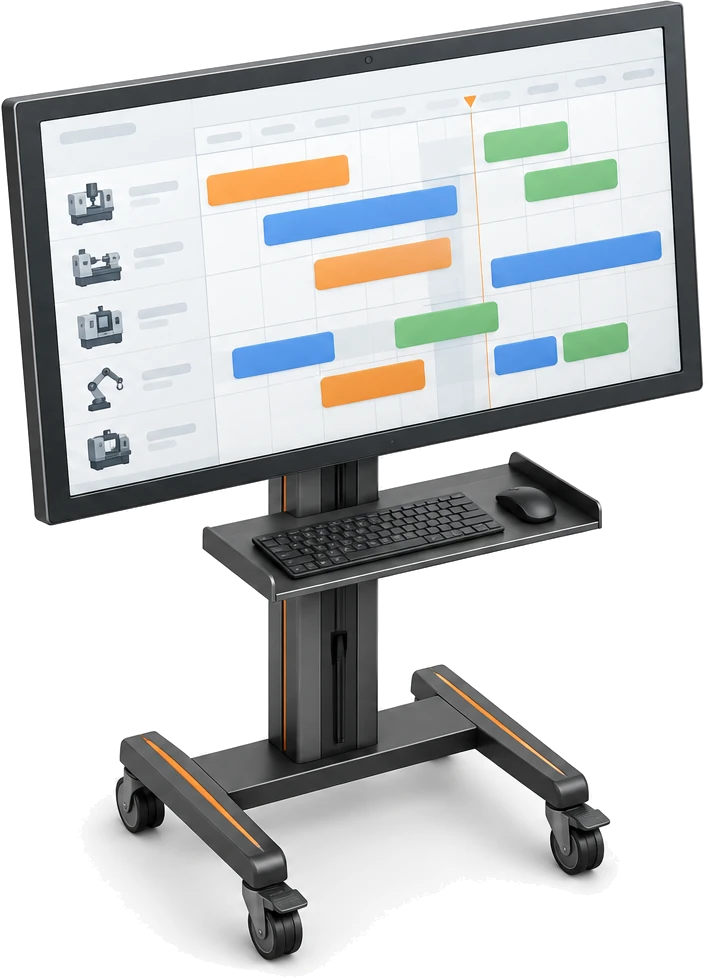
Every open step, one drag from a machine.
Drag and drop scheduling software for the whole site. Every unplanned step of an open job waits in the work queue, grouped by order and job, and every active machine has its own timeline. Drop a step on a machine and it becomes a planned run, saved the moment you let go.
Grouped the way work arrives
Steps sit under their order and job, sorted by due date, then priority, then job number.
A lane for every machine
Every active machine on the site gets a timeline. The display settings hide the machine types you are not planning.
Saved as you let go
Each placement saves at once and shows up for everyone who can open the board.
Mouse or keyboard
Press Enter on a step to choose the machine, day and start time. Press / to find any order, job or step.
It lands only where it can actually run.
Machine scheduling software has to know what each machine can do. In Bulk a step goes only onto an active, available machine whose type allows its work centre. Compatible lanes light up as you drag, the rest dim, and every row shows how full its day already is.
Work centres decide the lanes
Each machine type lists the work centres it accepts, shown as colour codes on its row. Every other lane refuses the drop.
A day’s load at a glance
The bar and percentage add up the planned minutes for the day in view against the whole calendar day, stopping at 100%.
Unavailable means no new work
A machine in maintenance or offline reads Unavailable, and one switched off reads Inactive. Neither takes new work.
Runs sized to how long they really take.
Machine shop scheduling software is only as good as its run times. Bulk sizes each run from completed work on the same part and step, and steps down to wider history when that is thin. Stretch a run and the board shows how far you are from the estimate.
History first
Past runs of the same part on the same routing step come first, then the step across parts, similar parts, and the work centre’s own history.
Fallbacks in a fixed order
With no history, a run takes the step’s plan minutes, then a flat time set on the work centre, then 60 minutes.
Odd runs left out
Unusually long or short runs are dropped before the average is taken, the history refreshes daily, and estimates snap to 15 minutes.
Overrides stay visible
Drag the right edge or press + and − to change a run by 15 minutes. It shows its difference, such as +30m, and Reset to estimate puts it back.
Move it, split it, send it back.
Job planning rarely survives the morning, so job planning software has to bend with it. A run can move to another time or machine, stretch on the 15-minute grid, split so a second machine can take the same step, merge back, or return to the queue without being lost.
Across time and machines
Drag a run anywhere it can run. Move to machine keeps its start time, and Move to time sets the machine, day, start and length.
Split for a second machine
Split into two runs keeps the first where it is and puts the second in the queue, carrying the step’s full quantity, ready for another machine.
Merge back
Merge all runs back turns the pieces into one step again, at the earliest of their placements.
Nothing gets lost
Return to queue sends a run back unplaced. Only a completed step’s run is fixed; running work can still be moved.
Jobs that share a machine can share a start.
Job shop scheduling software should let small jobs share a machine. Drop several steps at one start and they become a planning batch that moves as one block. Hold Alt and they line up back-to-back instead. Past loads show how many jobs that machine usually takes at once.
Batch or back-to-back
A normal drop plans the selection as one batch. Hold Alt (Option on a Mac) to lay it out end to end. With several steps selected, Plan together… opens the same choice in a dialog: together or back-to-back.
Asked, not assumed
Dropping onto planned work asks first: create or add to a batch, plan it separately, or cancel.
Typical load, not a limit
Squares on each block show how many jobs the machine usually runs together, learned from past loads. Going over warns and never blocks.
Overlaps flagged, never refused
Runs that collide outside a batch are marked overlaps, and the planner decides what to do.
Find the work before you plan it.
A long order book needs a way in. Filter the queue by due date, priority, customer, part, routing or process, keep only steps that are ready to start, and save the filter for everyone on the site. Press / to find any order, job or step.
Filters built from the order
Due date, priority, customer, part, routing, process and your own job and order fields, each as is or is not.
Ready now
Keep only steps whose earlier routing steps are done, so you plan work that can actually start.
Saved for the site
Overdue, Due today, Due this week and High priority are one click away. Filters you save are shared with every planner on the site.
The plan guides the floor. The floor updates the plan.
Shop floor scheduling software only helps if the plan and the floor agree. In Bulk the plan is advisory: operators still load work at the station in Production. Steps planned as one batch load as one batch there, and every run follows its step from planned to running to done.
A guide, not a gate
Placing a run records the machine and time you intend. It does not load the machine, and operators can still load something else.
Batches carry over
Steps you planned as one batch load as one batch when they are loaded onto the planned machine at the workstation.
Status comes back
Each run shows planned, then running with a percentage, then done, greyed out. A completed step’s run can no longer be moved.
Every change on record
Placements, moves, splits, merges and resizes are logged with the person and the old and new values, in the activity log.
When order matters more than the clock.
Some cells run to an order, not a start time. Prioritisation, a companion app on the same work queue, ranks the steps on each machine, shows what is loaded and running there now, and lets you group, move and copy work between machines.
Ranked per machine
Drag steps onto a machine and into order. No start times needed, and the loaded and running work sits at the top.
More than one queue
Each machine has a default queue and can take up to eight named ones. Steps can be grouped, split apart or copied to a second machine.
Same queue, same filters
It shares the planning board’s work queue, filters and display settings, and its Home tile counts the steps completed today.
What production scheduling software should answer.
Production scheduling software decides which machine runs each step and when, from what each machine can run, how long the work takes and how full each day already is. In Bulk the planner places the work by hand and the board supplies the rest.
| The question | How Bulk answers it | Where you read it |
|---|---|---|
| What still needs planning? | Every unplanned step of an open or in-progress job, grouped by order and job and sorted by due date, then priority, then job number. | The work queue, left of the board |
| Which machine can run it? | An active, available machine whose type allows the step’s work centre. Only those lanes accept the drop. | Colour codes on each machine row, and Move to machine |
| How long will it take? | An estimate from completed runs of the same part and step, falling back to wider history, then plan minutes, a flat work-centre time and finally 60 minutes. | The run’s length on the timeline, and Reset to estimate |
| How full is each machine? | Planned minutes for the day in view against the whole calendar day, capped at 100%. | The load bar under each machine |
| Where do two jobs collide? | Runs that overlap on one machine outside a batch are marked, never blocked. | Runs marked overlaps |
| What runs together? | A planning batch: several steps on one machine at one start, which load as one batch at the station. | The batch block, and the workstation in Production |
| Has it started yet? | Each run follows its job step, from planned to running with a percentage to done. | The timeline, and Find job or step |
| Who changed the plan? | Every placement, move, resize, split, merge and return is logged with the person and the old and new values. | Activity Logs, in Settings, and the audit trail |
Planned on the jobs you already run.
Scheduling reads the jobs, routings and machines Bulk already holds, so the queue fills itself. What you plan shows up again at the station, on Home and in the Value Flow dashboard, where unplanned work links back to the board.
- Inbound & OCRAn approved customer document becomes jobs in the queue.
- RoutingQueue rows are routing steps, each tied to a work centre.
- ProductionOperators load the work, and planned batches load as one.
- DashboardsValue Flow shows open work as loaded, planned or unplanned.
- Hub & HomeHome’s Scheduling tile tracks on-time delivery over 30 days.
Questions, answered.
What does Bulk’s production scheduling software do?
It is production planning and job planning software on one drag-and-drop board per site. The unplanned steps of open jobs wait in a work queue on the left, grouped by order and job, and every active machine has a timeline on the right. You place each step on a machine at a start time, and Bulk sizes the run from past work, shows each machine’s load for the day and marks runs that overlap.
Does Bulk schedule jobs automatically?
No. Planners place and move work by hand. Bulk does the checking around each decision: which machines can run the step, how long it should take, how full the machine’s day already is and where two runs collide.
Does planning a step load it onto the machine?
No. The plan is advisory. It records the machine and time you intend, and operators still load work at the workstation in Production. Steps you planned as one batch load as one batch when they are loaded onto that machine, and each run follows its step from planned to running to done.
How does Bulk estimate how long a step will take?
From completed runs, most specific first: the same part on the same routing step, the same step across parts, a similar part, then the work centre’s history. With no history it uses the step’s plan minutes, then a flat time set on the work centre, then 60 minutes. Unusual runs are left out, and estimates snap to 15 minutes.
Can I change a run’s duration?
Yes. Drag the right edge of the run, or press + or − to change it by 15 minutes. The run shows how far it is from the estimate, for example +30m, and Reset to estimate puts it back.
What happens when two jobs overlap on a machine?
The board allows it and marks both runs as overlapping, so the planner decides. If you drop a step onto work already planned there, Bulk offers to create a planning batch, to plan it separately or to cancel.
Does machine load account for shifts and working hours?
No. Load is the planned minutes on a machine for the day in view, measured against the whole calendar day and capped at 100%. A machine booked solid for one eight-hour shift reads about 33%, and overbooking shows up as overlapping runs.
Can one step run on two machines?
Yes. Split into two runs keeps the first run where it is and sends the second to the queue with the step’s full quantity, ready to place on another compatible machine. Merge all runs back restores the single step at the earliest placement.
Who can change the plan?
People with the Plan jobs permission, which the Entity admin, Manager and Operator roles have by default. The Tablet user role can open the board but not change it. Both permissions apply to the site you have selected, and every change is written to the activity log.
How far ahead can I plan?
The board opens on today with three days in view and grows as you scroll, up to 60 days at once. Start times snap to 15 minutes and every run is at least 15 minutes long.
Can Bulk replace my ERP?
It can. Orders, jobs, stock, invoices and credit notes live on the same record as the plan and the floor work, installed one app at a time. Where you keep an ERP or accounts package, approved orders flow in as jobs and land in the work queue.
Can I plan a small workload in a spreadsheet first?
Use the manufacturing schedule template to record planned work and its time windows. Keep the production log separate so planned output is not mistaken for actual output. For planning in Bulk, read the planning board guide and the guide to capacity and resources.
Bring a real backlog. Lay out the week.
Start a free trial, add a slice of your open jobs and your machines, and lay them out on the board: split runs, batch small jobs and see each machine's load, day by day. No card needed.