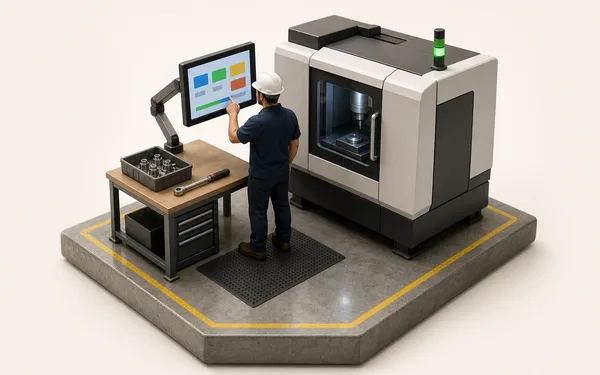
Bulk

Sales order automation, from customer PO to job.

Your customers send purchase orders as PDFs and scans. Bulk’s AI reads each one, matches the lines to your own parts and routings, and once someone approves it the order is jobs on the floor and lines on the invoice. Nobody types it in twice.

An order desk: a wire tray of customer purchase orders in different layouts, a monitor showing a document beside its matched order lines, and a label printer feeding out a job traveller with a barcode.

What manual order entry really costs.

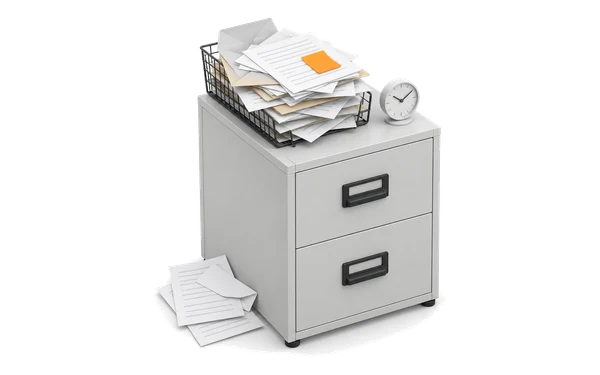
In most plants, sales order entry still means one person reading a customer’s PDF and typing the header and every line into the system, translating the customer’s part codes into yours and re-checking the dates. It is slow, it depends on whoever knows each customer, and its mistakes land on the floor.

Re-keying

Every order is typed twice

  • The customer’s PO is read on screen and retyped field by field
  • Orders wait for the one person who knows each customer’s layout
  • A slipped digit in a quantity or due date reaches the floor

Bulk reads the file once and keeps it beside the lines it produced. See purchase order OCR.
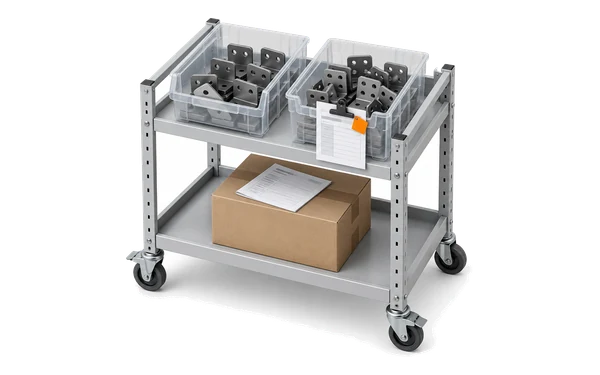
Matching

Their part number isn’t yours

  • Customer codes are translated to internal part numbers from memory
  • A near-identical part or the wrong routing gets picked
  • The error shows up as wrong work, not as a typo

Lines match exactly on your part, process and routing codes, fuzzy only where you allow it, and the match is stored on the line.

Backlog

Orders queue before the work does

  • POs sit in an inbox until someone has time to enter them
  • Nobody can see what has arrived but is not yet an order
  • Due dates start slipping before the job even exists

Upload a batch and let it read while you carry on; a teamboard KPI can count documents or lines received each day.

What sales order automation actually automates.

Sales order automation is software that takes a customer’s order document, such as a PDF purchase order, a scan or a photo, reads its header and line items, checks them against your own master data and creates the order without anyone retyping it. For a manufacturer the order is not finished until it is work, so in Bulk it carries on into production jobs and the invoice.

Receive the order

Customer POs uploaded one at a time or as a batch: PDF, PNG or JPG up to 10 MB each, scanned PDFs up to 10 pages.

Where you see itImport Documents

Read the header and lines

An AI vision model reads the PO number, customer and dates, then every line’s part, process, routing, quantity, prices and dates, plus your custom fields.

Where you see itThe inbound document

Learn each customer’s layout

One configuration per layout, set up once from a sample PDF in five steps and kept in version history so you can roll back.

Where you see itSettings, Inbound OCR

Match to your master data

Exact matching on your part, process and routing codes; fuzzy matching with a confidence threshold where you set it.

Where you see itPart, Process and Routing columns

Hold what doesn’t fit

A line with something missing cannot be marked Ready until a person fills it.

Where you see itDocument items, Status column

Approve and release

Manual review by default, routing sign-off where required, or Auto-Create Jobs for lines that pass every check.

Where you see itThe approval band

Create the work

Each Ready line becomes a job under one production order, carrying the required date read from the PO.

Where you see itProduction and Scheduling

Bill it

Line prices and added services travel on from the order to the invoice.

Where you see itInvoicing

Sales order processing automation, step by step: what Bulk does and where you see it

One customer PO, read once.

Order entry automation on one order: a three-line PO from a hydraulics customer, read and matched, one line held because it has no routing, approved by a planner and turned into jobs. Automated order entry does the reading; the checks keep wrong work off the floor.

Source beside every line

The document’s fields, its source file and its lines sit on one screen, so whoever checks an order reads the PO and the result side by side.

Duplicates flagged

Each file’s contents are fingerprinted, so a PO uploaded twice is marked Duplicate before it becomes a second order.

Phone orders too

New Document takes a typed order from a phone call or a walk-in through the same review, approval and job creation as a read one.

Their purchase order in, your production order out.

How much you automate is a setting on each customer layout, not a leap of faith. Start on Manual review, where people check the lines and submit. When a layout reads cleanly, switch it to Auto-Create Jobs and Bulk creates jobs as soon as the document is read, for every line that passes the checks you require.

Manual review first

Every configuration starts on Manual review. A line missing its part, process, routing or quantity cannot be marked Ready until someone fills it.

Auto-Create Jobs

Jobs are created straight after reading for lines whose part, process, routing and quantity all resolved, plus any due date or price checks you add. Lines that fail stay for review.

Sign-off by routing

A routing can require approval. The order then waits for an approver set on that routing, and the person who submitted it cannot approve it.

One order, on one record.

The order a customer sends is the same record the floor works and the office bills, so nothing is copied from one system to the next.

Questions, answered.

01

What is sales order automation?

Sales order automation turns a customer’s order document into an order in your system without anyone retyping it: the software reads the header and lines, checks them against your master data and creates the order. In Bulk the approved order goes on to become production jobs and, when the work is done, the invoice.

02

How does AI order entry work in Bulk?

An admin sets up each customer layout once from a sample PDF, mapping the header fields and the line columns. Bulk builds the reading instructions for that layout, and an AI vision model then reads every new PO in that layout into an inbound document. AI order processing does the reading; matching to your parts, the Ready checks and approval decide what reaches the floor.

03

Which order documents can Bulk read?

PDF, PNG and JPG files up to 10 MB each. A PDF with a text layer is read with that text, and a scanned PDF is read page by page as images, up to 10 pages. Bulk does not read orders from an email inbox: files are uploaded, one at a time or as a batch.

04

Does it create jobs without anyone checking?

Only if you choose that, per customer layout. Configurations start on Manual review, where people check the lines and submit. On Auto-Create Jobs, Bulk creates jobs straight after reading for lines whose part, process, routing and quantity all resolved, plus any due date or price checks you add; the rest wait for review.

05

What is the difference between sales order automation and purchase order OCR?

Purchase order OCR is the reading step: extracting the header and lines from the customer’s PO. Sales order automation is the whole path from that document to an approved order, including matching, checks and approval. Bulk’s purchase order OCR page goes through the reading step in detail.

06

What is sales order processing?

Sales order processing is the work between a customer placing an order and paying for it: entering and checking the order, confirming it, making or picking the goods, delivering and invoicing. For a manufacturer that makes to order, it includes turning the order into production jobs, which is where Bulk takes it.

07

Does Bulk send the order into our ERP?

Bulk holds the order itself: the approved document becomes the production order and its jobs, and the same record runs on to the invoice. Where you keep Dynamics 365 Finance & Operations, the live connector brings customers and sales orders in from it and sends job status and invoices back; SAP S/4HANA is in private beta. See integrations.

08

Is it for distributors as well as manufacturers?

It is built for plants and labs that make to order: order lines match to parts, processes and routings and become jobs. A distributor that only picks finished goods from stock needs order entry into a stock catalogue, which Bulk does not do.

Bring your messiest POs. Watch them become orders.

Start a free trial, set up a layout from one real customer PO, the uglier the better, and run the next ones from the PDF to approved jobs. No card needed.